ComfyUI Latest Version Interface Tutorial: Comprehensive Guide to Manager Section
In this tutorial, I’ll walk you through the ComfyUI interface, specifically the Manager section, to help you navigate and customize your workflows more efficiently.
1. Interface Overview (New Menu UI)
Here is overview of comfyui through this picture:
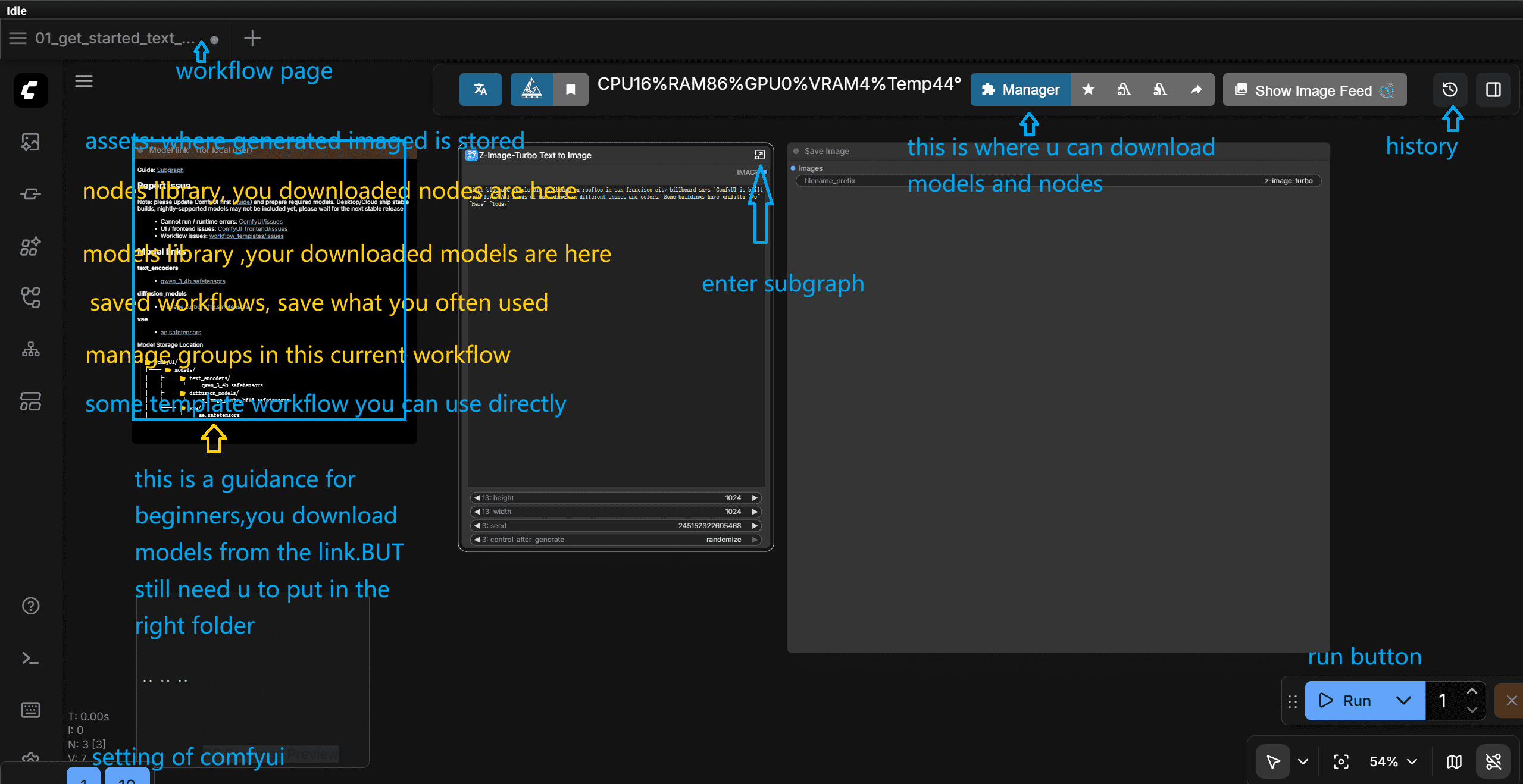
2. Subgraph
- you can click the subgraph icon to enter the inner subgraph, which is still a workflow. exit by click return icon on the top-left corner.
- What is it used for? In my view, it can simplify the workflow and hide complex internal nodes and keep the main canvas clean and tidy.
- use ctrl and drag to choose nodes that you want to put in the subgraph, then choose convert selection to subgraph.

3. Manager(right-top) - Key Interface Components
3.1 Custom node management
- Search for desired node pack or individual node
- Select the node card to expand details
- Click Install → Wait for completion → Restart ComfyUI
3.2 install missing custom nodes
- Filter by Update available
- Updatable nodes show an update arrow indicator
- Use Update All for bulk updates
3.3 Model manager
When loading a workflow with missing nodes:
- Option 1: Click Install All for one-click installation
- Option 2: Click Open Manager to review details before installing
3.4 update/switch comfyui
you can update or switch comfyui version .
note: When using new nodes or models, update can solve the most of compatibility issues.
3.5 restart
remember to restart comfyfyui after installing new nodes or models.
note: restart comfyui is necessary.
3.others
you can click this button to show or not show links.
note: If you are using comfyui-cloud platform,you may missing some of these components. But don't worry, most of nodes and models are available on comfyui-cloud platform.Just some new features are not available.